The Shroud Scope Help Page
The Shroud Scope has been successfully tested on the following browsers: Firefox, Chrome, Safari and Internet Explorer (IE) version 9. Sorry, the Shroud Scope does not work on Internet Explorer (IE) version 8 or lower.
This Web page describes the functionality of the Shroud Scope, a Web interface to display high definition photographs of the Shroud of Turin, zoom-in and -out these photographs, activate overlays and do length measurements over them.
The Shroud Scope has currently three different photographs: the 1931 Enrie photograph (shown in negative), the full 2002 Durante photograph (shown in positive), and a face close-up also done by Durante in 2002. All photographs have two versions: vertical and horizontal. And for the Enrie photograph, a 3D anaglyph vertical version is also provided. That version requires special color filtered glasses to perceive the 3D stereo effect (See the 3D Section below for more details). At the highest zoom-in level, the Durante photograph has a resolution of 0.1905 mm per pixel (a pixel is a dot on your screen), the face close-up has a resolution of 0.08 mm per pixel, and the Enrie photograph has a resolution of 0.4262 mm per pixel. These resolutions are based on the width at the frontal end of the Shroud (the left edge when the Shroud is shown horizontally): 1120 mm for the Enrie photograph, 1130 mm for the full Durante photograph (as reported on p. 121, in Sindone 2002, by Mechthild Flury-Lemberg), and the face close-up resolution is based on a measurement done on the full Durante photograph and measured on the face close-up photograph. The widths differ betwen te Enrie and Durante photographs since, in the summer of 2002, the Shroud was removed from its 400 years old backing cloth and carefully flatten to be stiched to a new backing cloth.
As far as we know, the Shroud Scope provides the highest resolution photographs of the Turin Shroud publicly available on the Web, worldwide, including the official web site of the Shroud of Turin in Italy.
The initial Shroud Scope Web page contains several widgets, panels, and icons as seen on the following screen snapshot.
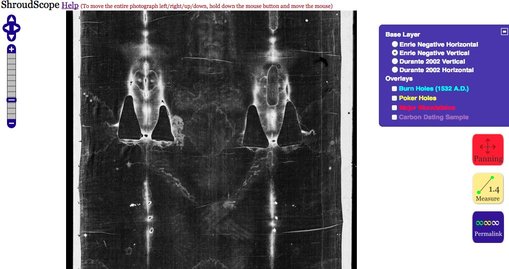
In the following paragraphs we give brief descriptions of them but more details are available in the subsections below.
The Switch Panel widget is the blue panel that appears on the right side, near the top, of the Web page. If it is closed, click the plus icon to open it. It displays two lists: Base Layer and Overlays. The list of base layers is above the list of overlays. Each base layer is a photograph of the Shroud of Turin. Only one base layer can be active at a time whereas several overlays can be active at the same time. Select the desired base layer and overlays by clicking their title or their radio button in the Switch Panel.
The Ladder widget is the blue widget in the form of a ladder with over 10 steps displayed on the left of the Web page. It is used for zooming-in and -out the current active photograph (aka base layer). You can click on any ladder step to go directly to a specific zoom level. You can also use the plus icon to zoom-in or the minus icon to zoom-out. The first zoom level, the lowest, displays a 3%-scale image of the original image used at the highest zoom level. It is very small and should fit almost any computer monitor size. The second zoom level displays a 5%-scale version, the third zoom level is a 10%-scale version, the fourth zoom level is a 20%-scale version, and so on by increment of 10% up to the highest zoom level at 100%. At that zoom-level, it is the highest definition that can be displayed.
The colorful rounded-square icons on the right of the Web page can be used to activate different tools. There are three tools: panning, measure, and permalink. These tools are described on this Web page below. To activate a tool icon, simply click it. An active icon that has a reddish hue means that it is active and that the state of the Shroud Scope has changed. For example, if the measure tool is active, no panning can be done, and vice versa. A tool remains active until you click another tool. When you first visit the Shroud Scope Web page, the panning icon is active. The panning icon enables you to move (or pan) the entire photograph on the Web page.
The Base Layers
A base layer is essentially the main Shroud photograph shown on the Web page. Currently, three images are available, displayed horizontally or vertically, plus a 3D anaglyph version, that is seven base layers are provided: Enrie Negative Horizontal, Enrie Negative Vertical, Durante 2002 Horizontal, Durante 2002 Vertical, Face Only Horizontal, Face Only Vertical and Enrie Negative 3D Vertical. More base layers are planned for the future. The Durante 2002 photograph has the highest definition. As far as we know, this is the highest definition photograph available on the Web, worldwide.
To select a different base layer, click the title or the circle next to the title, of the desired base layer. If the selection is different than the current displayed base layer, the current displayed photograph will be replaced with the new selected photograph at the same zoom level and at the same centered location as the current displayed one.
Panning
Panning is required at some zoom levels since zooming-in will increase the level of the details and the entire photograph will become larger or wider than the size of your computer monitor.
Panning is the operation of moving the entire photograph left/up/down/right as if you were grabbing a piece of paper. When the Shroud Scope is first displayed, panning can be done by holding the left mouse button and moving the mouse in the desired directions. The entire photograph will move. Therefore, the scrolling bars are not used to move the photograph. Likewise, if your mouse has a wheel, it no longer can be used to move the photograph. The wheel can actually be used for the zoom-in and -out operations (see next subsection).
Note that once the measurement tool is active, via the Measure icon, panning is deactivated by the method just described. You either need to reactivate panning by clicking the Panning icon or you can use the arrow icons above the ladder to pan the photograph.
Zooming-in and -out
One of the main function of the Shroud Scope is the possibility to zoom-in or -out the Shroud photographs. This can be done in several ways: by clicking the ladder widget shown on the left of the Web page, by double clicking on the photograph, or by using the mouse wheel. Essentially, this works in a similar manner as the Google Maps.
Double-clicking always zoom-in and center the photograph at the double-clicking point. This is handy to zoom-in to a particular location on the Shroud photograph.
Clicking on one step of the ladder widget, which is on the left of the Web page, displays the Shroud photograph to the clicked zoom level. A higher step on the ladder is a higher zoom-in. The lowest zoom level displays a 3%-scale version of the original photograph of the highest zoom level. This is pretty small and should fit the entire in any computer monitor. The second zoom level is a 5%-scale version, the third a 10%-scale version, and so on by increment of 10% up to the highest zoom level at 100%. Depending on the speed of your network connection and the speed of the server, high level zoom-in may take sometime to display.
Enrie 3D Anaglyph Version
One of the base layers of the Shroud Scope shows the images on the Shroud in 3D. It is called “Enrie Negatif 3D Vertical”. Special glasses with colored filters (red/green-blue) are needed to perceive the 3D effects. They are common glasses used by the film industry. An inexpensive paper version is shown in Figure 1.
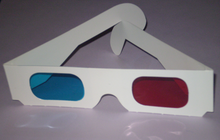 |
| Figure 1. A pair of inexpensive anaglyph glasses with red and green-blue filters. |
The method used to produce the 3D version of the Enrie photograph of the Shroud of Turin is very simple. It is important to emphasize that no artistic effects were used to generate the 3D anaglyph version.
Essentially, an anaglyph image is produced by using a depth map, or depth image. The depth map describes the 3D data required to produce the 3D effect. The depth map is typically produced by hand or by using a second photograph that was taken with a different angle when the main photograph was taken. In the case of the Enrie Vertical 3D Photograph of the Shroud Scope, the depth map is the image itself. It is very rare that a regular photograph can be used that way.
More specifically, the Enrie Negatif 3D Vertical photographs of the Shroud Scope was produced using the composite command of the ImageMagick software. Assuming that the file Enrie.jpg contains the complete vertical, and negative (black and white), Enrie photograph, the 3D photograph was created in two steps.
- composite Enrie.jpg Enrie.jpg -displace 20x0 Enried.jpg
- composite Enried.jpg Enrie.jpg -stereo +0+0 Enrie3D.jpg
The first step generates a displaced photograph Enried.jpg by using the Enrie.jpg photograph as a depth map (the first file specified on the composite command) applied to the Enrie.jpg itself. The displacement is done solely along the horizontal (or x axis) by a maximum of 20 pixels left or right. The depth map, which is the Enrie.jpg photograph, has only gray colors. The amount of positive displacement (translation) of each pixel of the Enrie.jpg photograph is linearly proportional to the level of white color of each corresponding (i.e., same coordinate) pixel of the depth map. In othe words, since the photograph that is translated and the depth map are the same file, each pixel of Enrie.jpg is displaced horizontally according to its own amount of white color.
The second step merges the two photographs Enried.jpg and Enrie.jpg such that the former uses only the red color and the latter the green and blue colors to give the photograph Enrie3D.jpg. This last photograph, seen with a pair of anaglyph glasses, will let the Enried.jpg be perceived by only one eye, and the Enrie.jpg photograph by the other eye, forming a 3D stereographic view of the Shroud.
For the Shroud Scope, further image processing operations are done to produce the various levels for zooming, but these operations are the same for all the other base layers and are not related to the 3D view itself.
Note that, all artifacts of the Shroud, that is, images, water stains, bloodstains, burned marks, and more, have been left unmodified during the 3D creation and are thus shown as they are without trying to remove or mitigate the 3D effects. We believe this is the genuine way to produce a 3D anaglyph photograph of the Shroud without human interpretation. It is also the simplest way. The Enrie photograph shows how realistic, corresponding to a real corpse, the 3D data have been encoded in the Shroud as levels of black (white on the negative) color. This is quite unique.
Overlays
Overlays are geometric figures drawn on a Shroud photograph. Each overlay can be made visible or invisible by simply clicking its title in the panel switcher.
Four overlays are currently provided:
- Burn holes of 1532 A.D..
- Poker holes (Pre-14th century).
- The major bloodstains.
- The 1988 radiocarbon dating sample location.
Length Measurements
The icon with the label Measure enables you to do length measurements on any of the Shroud photographs at any zoom level. To do a length measurement, please follow the following steps:
- Select and center the photograph at the location where the measurement will be done.
- Click the Measure icon; it will become redish.
- Click on the photograph at one end of the object to measure; a small window will open showing the current length (0 mm).
- Click, or double-click, on the other end of the object to measure; the small window will display the length in millimeters. The end-points of the measurement, in pixel locations, are also shown.
- If on the last step, you double-clicked, the length measuring tool is ready for a new measurement. But if you only clicked, you can continue measuring: the measuring tool keep adding the lengths.
To dismiss the small window showing the measurement results, click the small x icon in the top-right corner of the small window .
Web Link, (Permalink)
One of the great feature provided by the Shroud Scope is the ability to create a Web link (i.e., a URL) to refer to a specific image, zoom level, location and set of selected overlays. This Web link can be saved in your computer in many places or even in documents you have prepared for the Web. This facility enables the sharing of Shroud images via the Shroud Scope. For example, in describing a particular location on the Shroud to a friend via email, you can ceate a Web link that shows that location, and include that Web link in your email to that friend. That friend can simply click that URL in the email received to see that location of the Shroud.
When you click the permalink icon, a small window opens containing a Web link in blue. This link was created based on the base layer selected (the Shroud photograph), the overlays that are active, the zoom level, and the location of the center of the base layer. Essentially, this link represents the state of the Shroud Scope as you see it.
You can then drag and drop the link:
- In an email
- On the toolbar of your browser
- On the desktop of your computer
- In any other document (e.g., Word) that accepts the operation drag and drop
Moreover, if you are familiar with HTML encoding, you can embed this link in your own Web page.